
Welcome to another blog post from Digicitor.
The topic of today’s blog is in text and video. If you prefer the latter, you can watch it below. So, let’s go ahead with the rest of the blog post.
If you have already published a paperback on Amazon KDP but need to make changes—whether it’s to fix typos, update content, or adjust formatting—this guide will walk you through how to edit a live published book step by step.
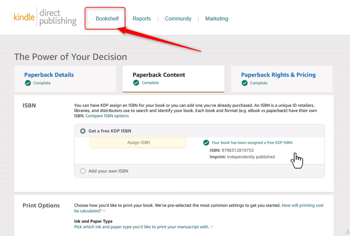
Step 1: Go to Your KDP Dashboard
- Log into your Amazon KDP account.
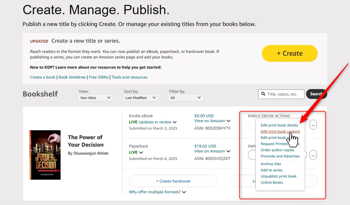
- From your Bookshelf, locate the book you want to edit.
- Click “Paperback Actions” next to the book title.
- Select “Edit book content.”
Step 2: Update Your Manuscript
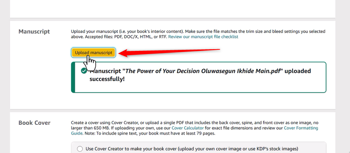
- Scroll down to the Manuscript section.
- Click “Upload paperback manuscript” and select your newly edited file from your device.
- Wait for the upload to complete.
✅ Tip: Make sure your manuscript is in the correct format (preferably PDF) and matches the original book size and specifications.
Step 3: Re-upload the Book Cover
- Even if you’re not changing the cover, KDP may require you to re-upload it.
- Click “Upload your cover file” and select your existing or updated cover.
- Wait for the cover to finish uploading.
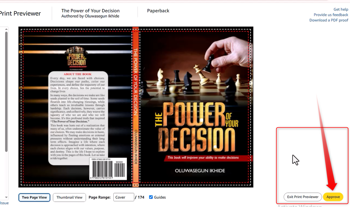
Step 4: Launch the Previewer
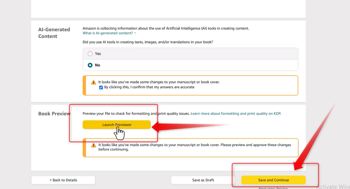
- Scroll down and click “Launch Previewer.”
- Review your book carefully. Flip through every page to ensure everything looks right.
- Click “Approve” if satisfied.
Step 5: Save and Publish
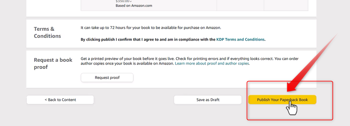
- After approving the preview, scroll down and click “Save and Continue.”
- On the final page, click “Publish Your Paperback Book.”
🕓 It may take a few days for Amazon to process the changes and update the live version.
Step 6: Confirm the Update
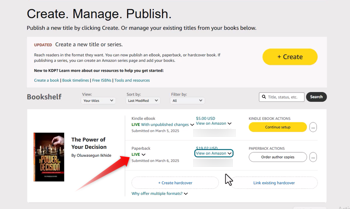
- Go back to your Bookshelf to check the book’s status.
- Once it shows “Live” again, click on the book title to view it on Amazon.
- Verify that your edits have been successfully applied.
✅ Final Thoughts
Editing a published paperback on Amazon KDP is simple if you follow these steps carefully. Whether you’re correcting errors or updating content, the process ensures your readers always get the best version of your work.
📌 Have more KDP questions? Subscribe to my YouTube Channel for more tutorials like this one!